Record an activity in the YuMuuv app
Who is this for?
In-app recording is an option for participants who only have a phone and no fitness tracker. It also helps when your tracker doesn't support a particular sport. You can use it alongside any integration – recorded workouts show up in your activity list with the source YuMuuv app.
How to record a workout
Open the Activities tab in the bottom bar and tap the green Record button.
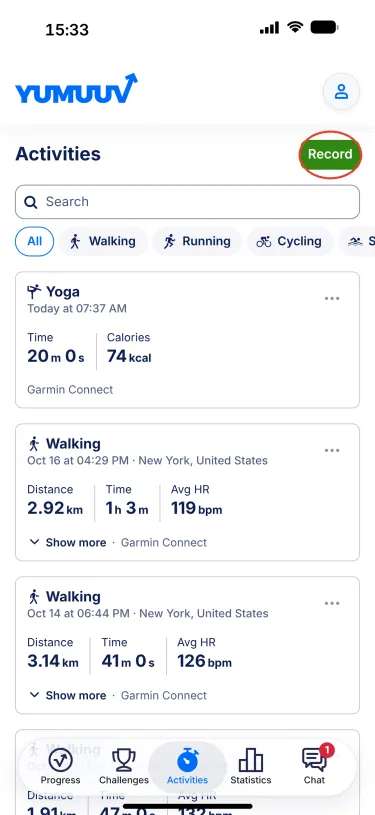
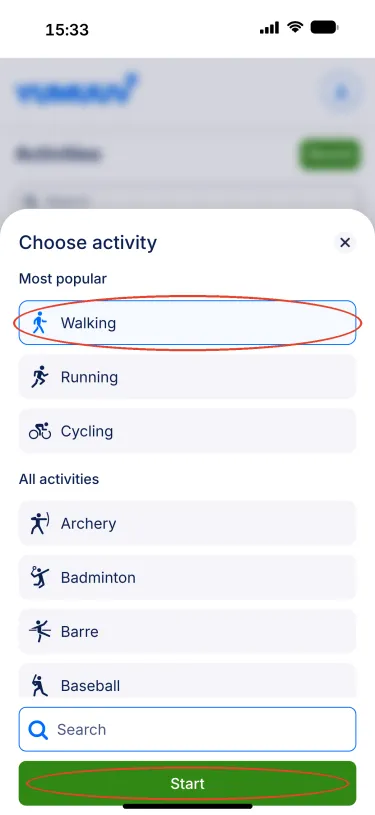
Choose the activity. Walking, running and cycling are at the top; scroll or use the search box for everything else. Tap Start.
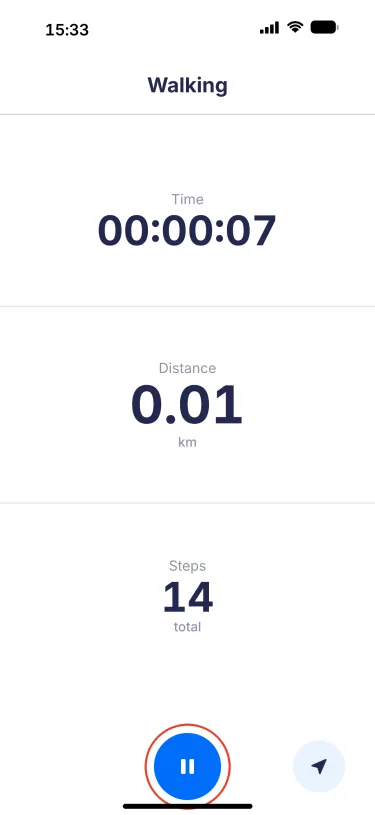
The recording screen shows your time, distance and steps as you go. Keep the phone with you – in a pocket or armband is fine. The arrow button shows your current location.
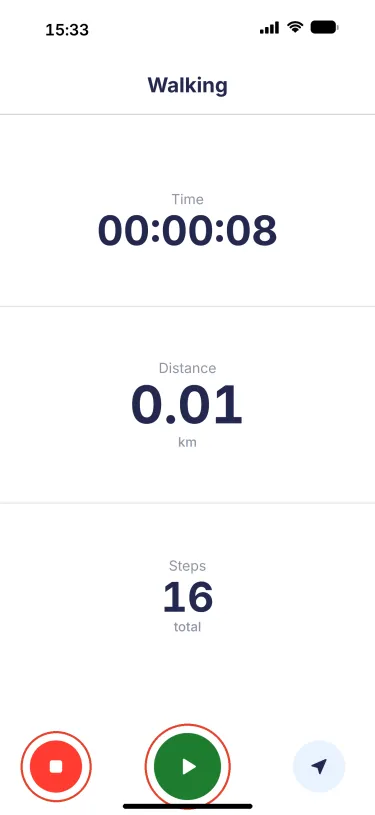
Need a break? Tap the blue pause button. Tap the green play button to continue, or the red stop button to finish.
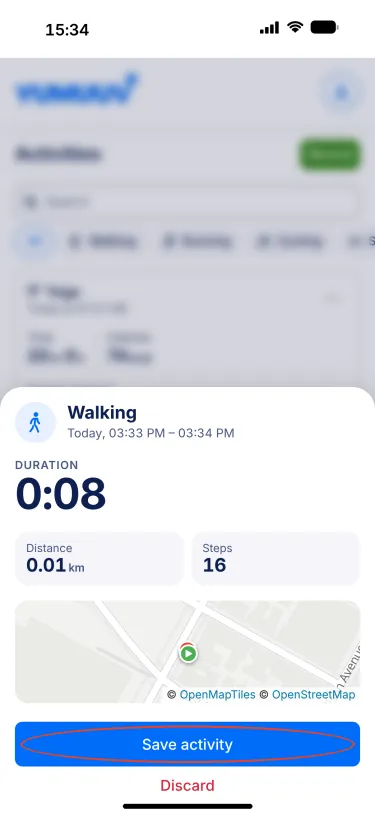
After stopping you see a summary with duration, distance, steps and start/end time. Tap Save to keep the workout, or Discard if it was a false start.
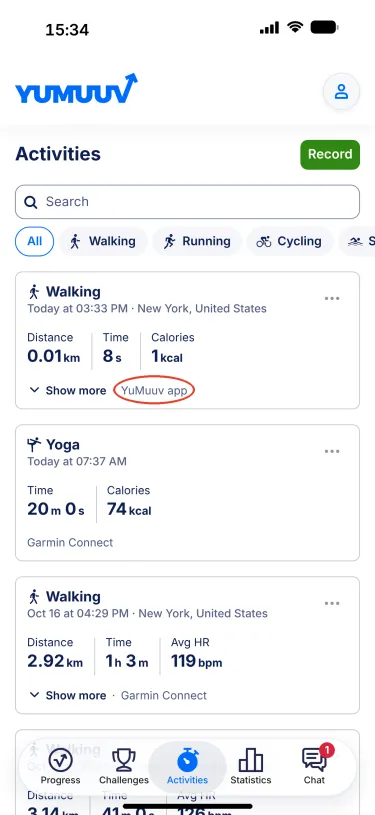
The workout now appears at the top of your Activities list with the source YuMuuv app, and is counted in the challenges you take part in.
Good to know
- Distance and location need the app's location permission. If you are asked for it the first time you record, choose Allow while using the app.
- Steps are counted by your phone's motion sensor, so keep the phone on you while recording.
- A saved workout cannot be edited afterwards, and a discarded one cannot be recovered – so check the summary before you tap Save.
Questions? Write to us at support@yumuuv.com.