How to Create a Private Challenge in YuMuuv (Step by Step)
Enjoy the challenges your employer sets up, but want to get your friends or family moving too? Or run a small challenge with a few close colleagues? With YuMuuv, every user can create their own private challenges. Here is who they are for, what you can create and how to set one up step by step.
Table of Contents
Who Are Private Challenges For?
Not only admins can create challenges – every YuMuuv user can. A private challenge can include up to 10 people, and they do not have to work at your company: family, friends, classmates or a few close colleagues all work. You can create up to three private communities and run as many challenges as you like with each of them.

What Kind of Challenges Can You Create?
Almost anything: activity challenges such as steps or calories, and wellbeing challenges such as sleep, water or reading. Before you start, check which challenges need a heart rate device, so everyone you invite can take part – our guide to YuMuuv challenge types explains the differences, and the complete list of challenges has plenty of ideas.

Why Create Your Own Challenge?
Company challenges are fun, but challenging your loved ones is something else. Activity and wellbeing give you a reason to stay in touch every day, and a little friendly competition is often exactly the push needed to get off the couch. It is always easier together. For inspiration, read how to get your family moving with a private challenge.
How to Create a Private Challenge: Step by Step
1. Step 1: Create a Community
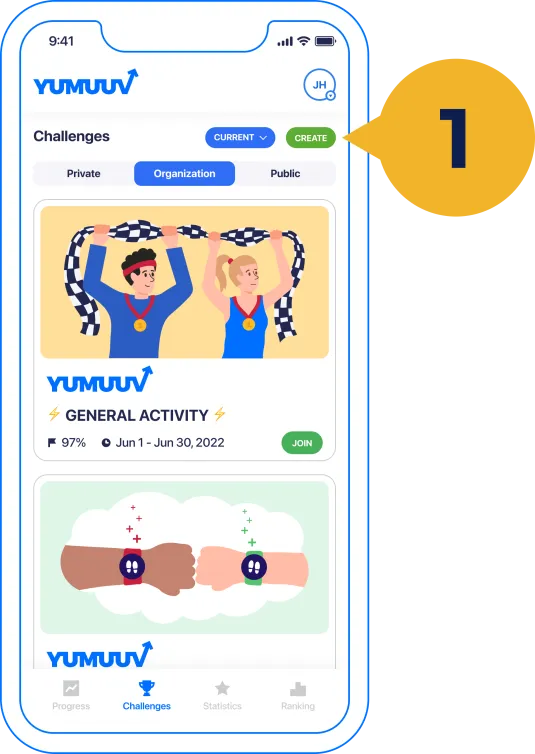
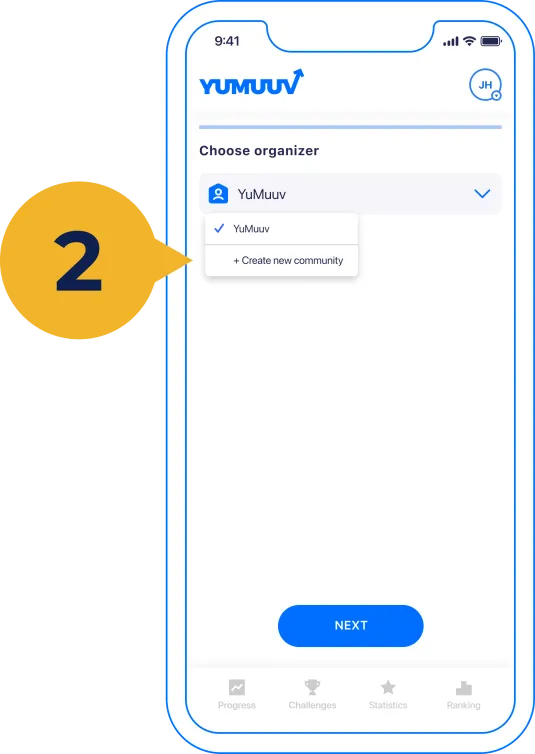
Open the YuMuuv app and select Create in the upper right corner. Create a new community and give it a name.
2. Step 2: Set Up the Challenge
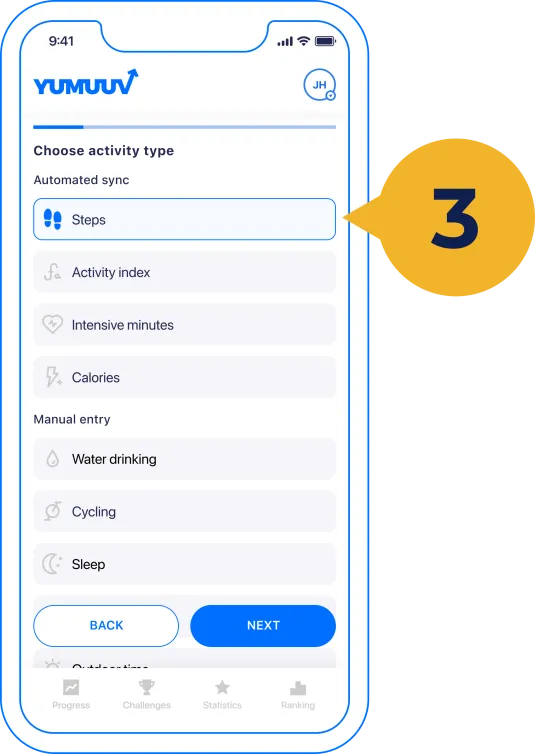
Choose the challenge type, settings, challenge period and goal type. Then give it a name, a prize (which can simply be “a healthier body” or “a happier month”) and a short description for participants.
3. Step 3: Find Your Invite Code
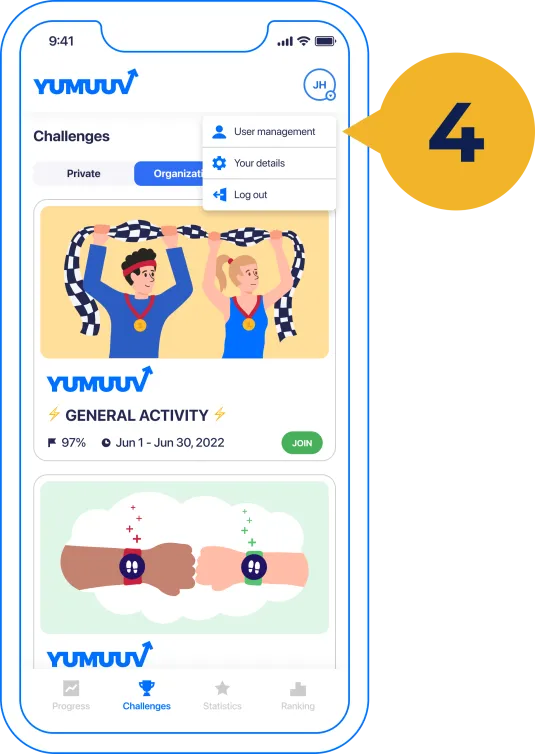
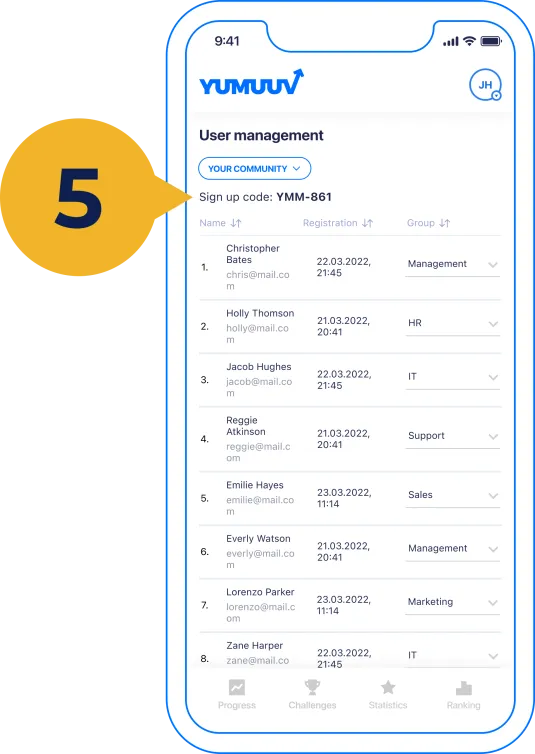
Click your initials in the upper right corner and open User management. Your challenge's sign-up code is shown at the top. If you have more than one private community, switch between them from the drop-down menu.
4. Step 4: Invite People
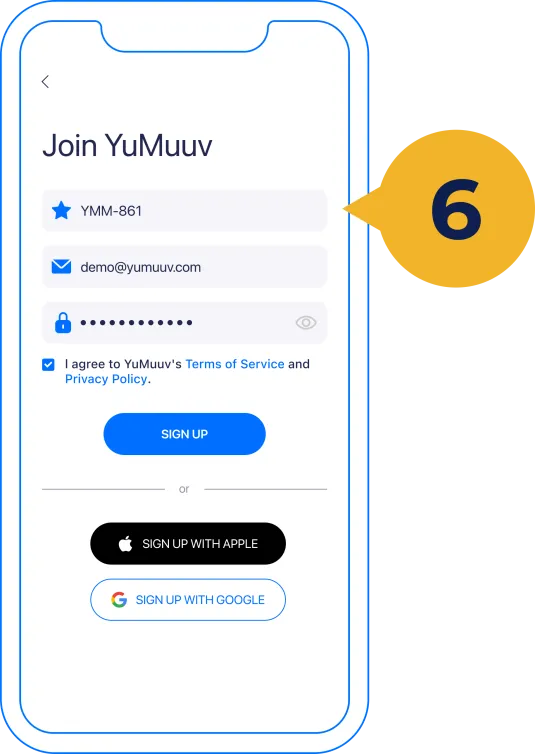
Send the code to the people you want to invite. They use it to create their own account, and they will appear automatically in User management, where you can also remove people if needed. Only share your private challenge code – never your company registration code.
For more details, see our help article on how to create private challenges as a user.
Frequently Asked Questions
1. How many people can join a private challenge?
Up to 10 people per private challenge, and you can create up to three private communities.
2. Do participants need to work at my company?
No. They can be family, friends or anyone else you invite with your private challenge code.
3. Who can I contact if I have questions?
Email us at support@yumuuv.com – we are happy to help and share challenge ideas.