Joining and Changing Teams
The company admin or one of your teammates has set up your team in the system. Want to join? No worries — let’s walk through the steps together!
Table of Contents
1. Choosing a team if you don't have an account yet
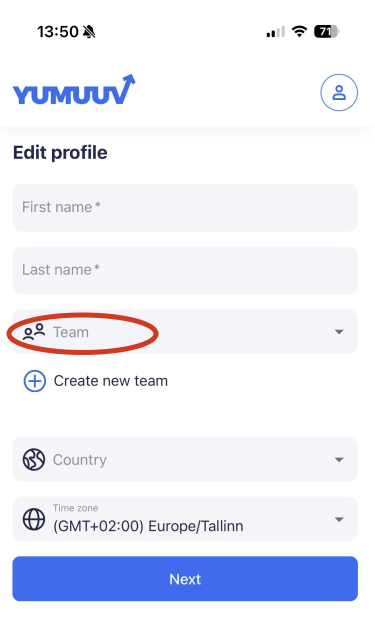
If you don’t have a YuMuuv account, you can choose a team for yourself during registration. After entering the sign-up code, email address, and creating a password, you’ll be redirected to the next page. There, enter your name and use the Team drop-down list to select the correct team.
2. Choosing a team if you already have an account
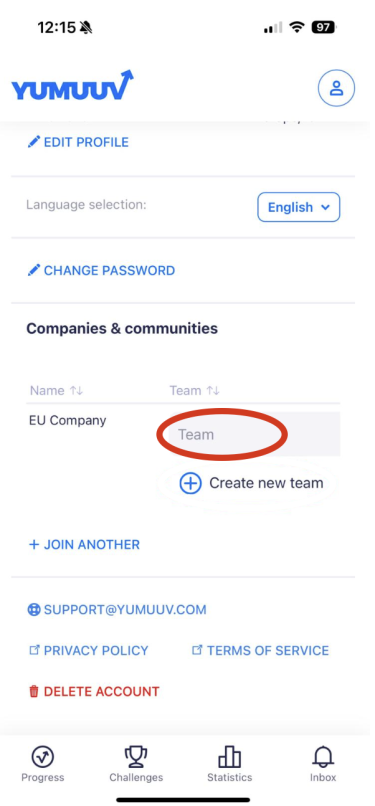
If you already have a YuMuuv account and want to choose a team, go to Your details (click on the profile circle in the top right corner and select Your Details). Scroll down to the Companies & communities section and swipe slightly left to view the team list. Choose the correct team for yourself from the list.
3. I've got the wrong team/I want to change my team. What should I do?
If the challenge organizer has enabled team switching, you can change your team on the Your details page by following these steps:
1. Click on your profile circle in the upper right corner.
2. Select Your details.
3. Scroll down to Companies & communities.
4. Swipe slightly left to view the team list.
5. Choose the correct team for yourself from the list.
4. How do I view who is in my team?
To see who is on your team, go to the Teams Leaderboard tab in the challenge and click on your team name. This will open a list of all team members.
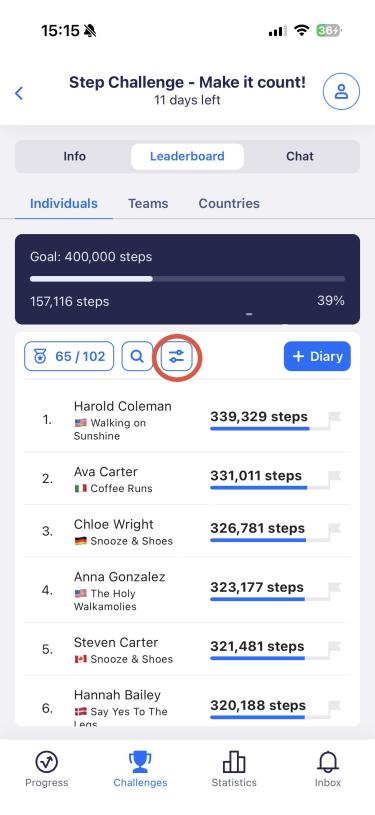
You can also use the Filter button on the Individuals Leaderboard and select your team name to view all members of your team.
Additionally, each participant’s team name is displayed under their name for easy reference.
If you have any problems with navigating in our app, contact us directly.