Inside the challenge
Leaderboard
On the leaderboard tab, you can view the ranking of all users from your company or community who have joined the challenge. A green line separates the rankings—being above the line indicates that you are on track to complete the goal by the end of the period.
At the top, you can switch between leaderboards for individuals and different groups (such as teams, countries, or custom groups), depending on which leaderboards the challenge organizer has enabled for the challenge.
In the darker area, you can monitor the challenge goal. The goal is displayed at the top, while your current score is shown at the bottom.
If manual entry is allowed in the challenge, you can input your data manually using the blue +Diary button.
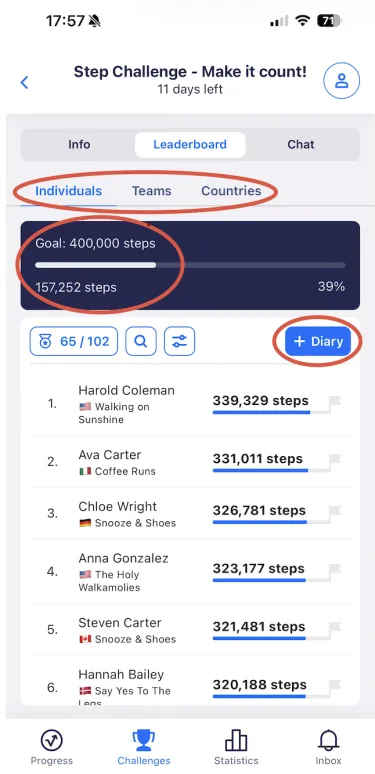
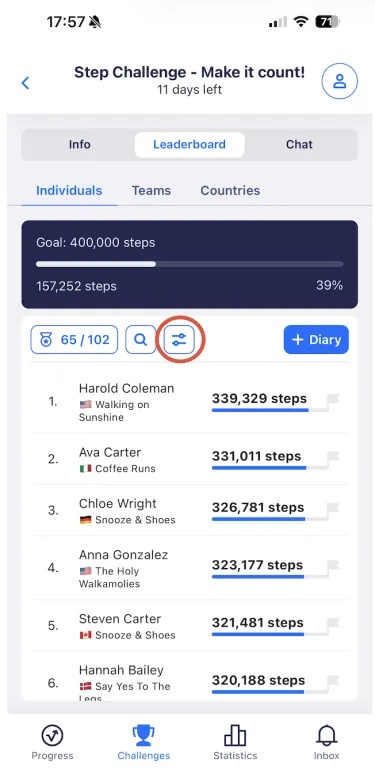
On the Leaderboard tab, you can also filter the leaderboard using a dedicated filter button, allowing you to sort users by their team and/or country.
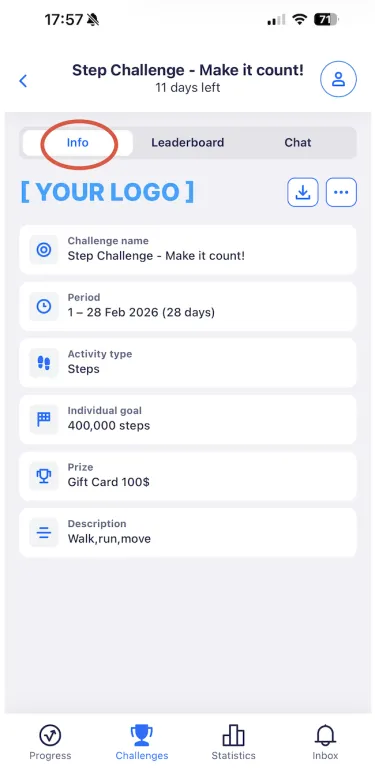
Info
On the Info tab, you will see the challenge details, including the name, period, activity type, goal, prize, and description (if provided by the challenge organizer).
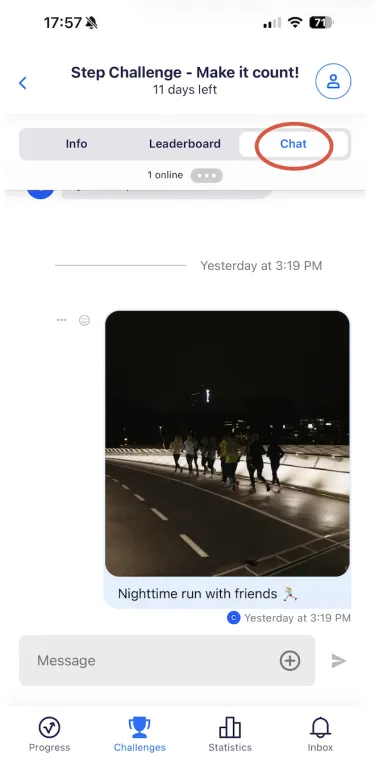
Chat
If the challenge organizer has enabled the chat function, a Chat tab will be available. Here, you can communicate with all participants, share pictures/videos, and motivate each other. Please note that all messages are visible to everyone in the challenge.
Your groups – team, department or office – also have their own chats that are not tied to a challenge. You find them under the Chat tab in the bottom bar. Read more: Group chats.
If you have any problems with challenges, contact us directly.