Management and Creation of Teams/Groups for Admins
Table of Contents
1. How to create new teams/groups?
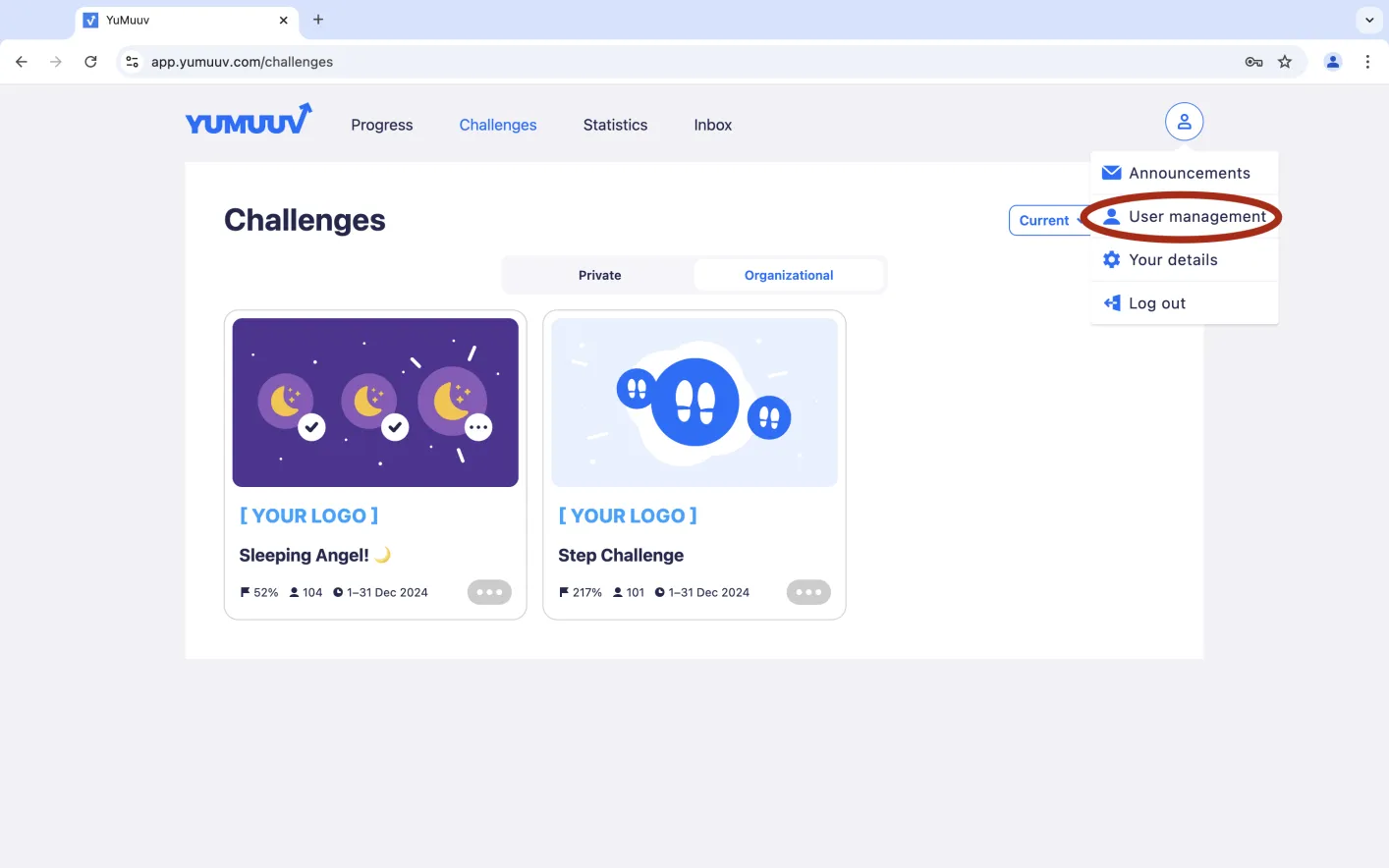
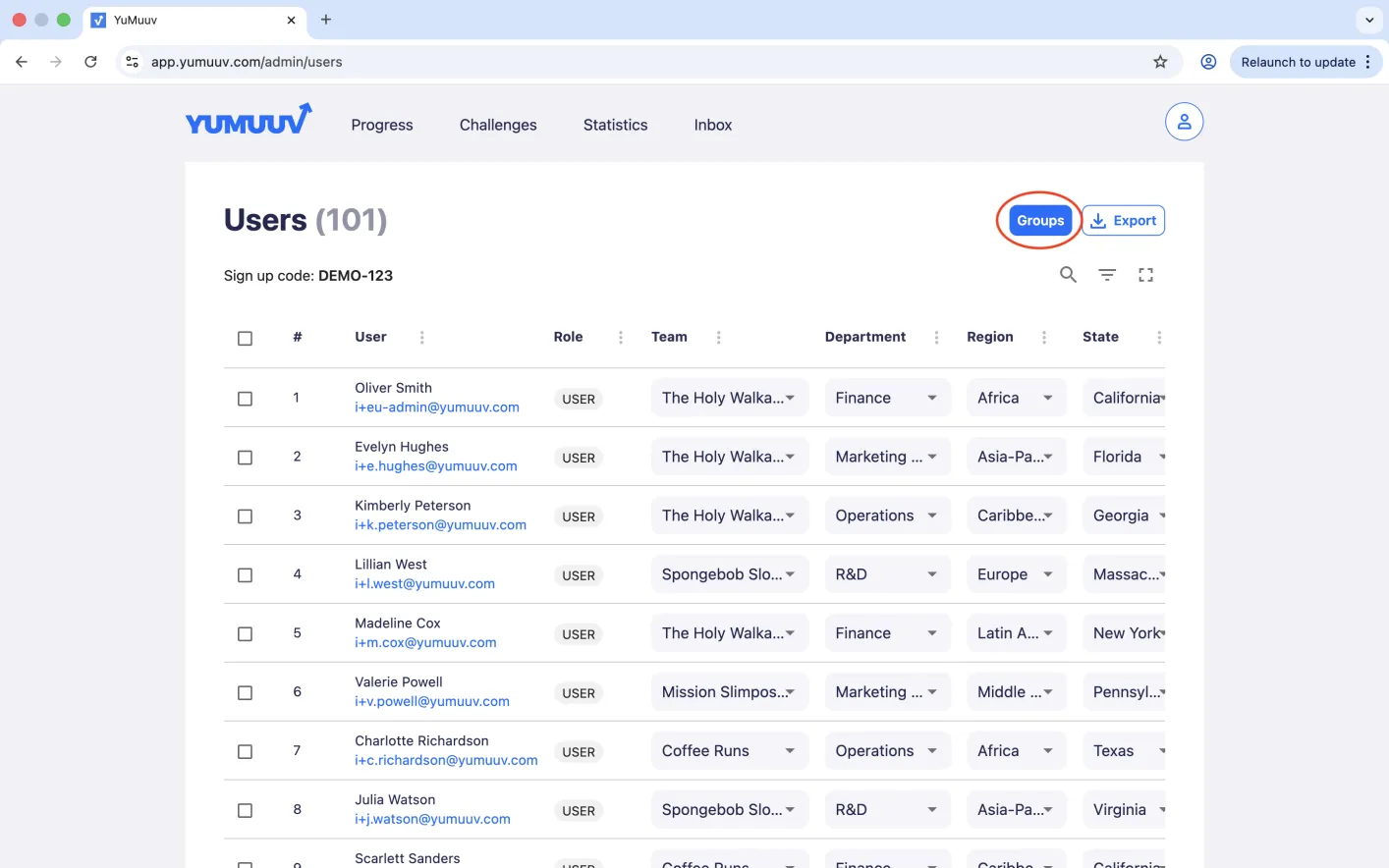
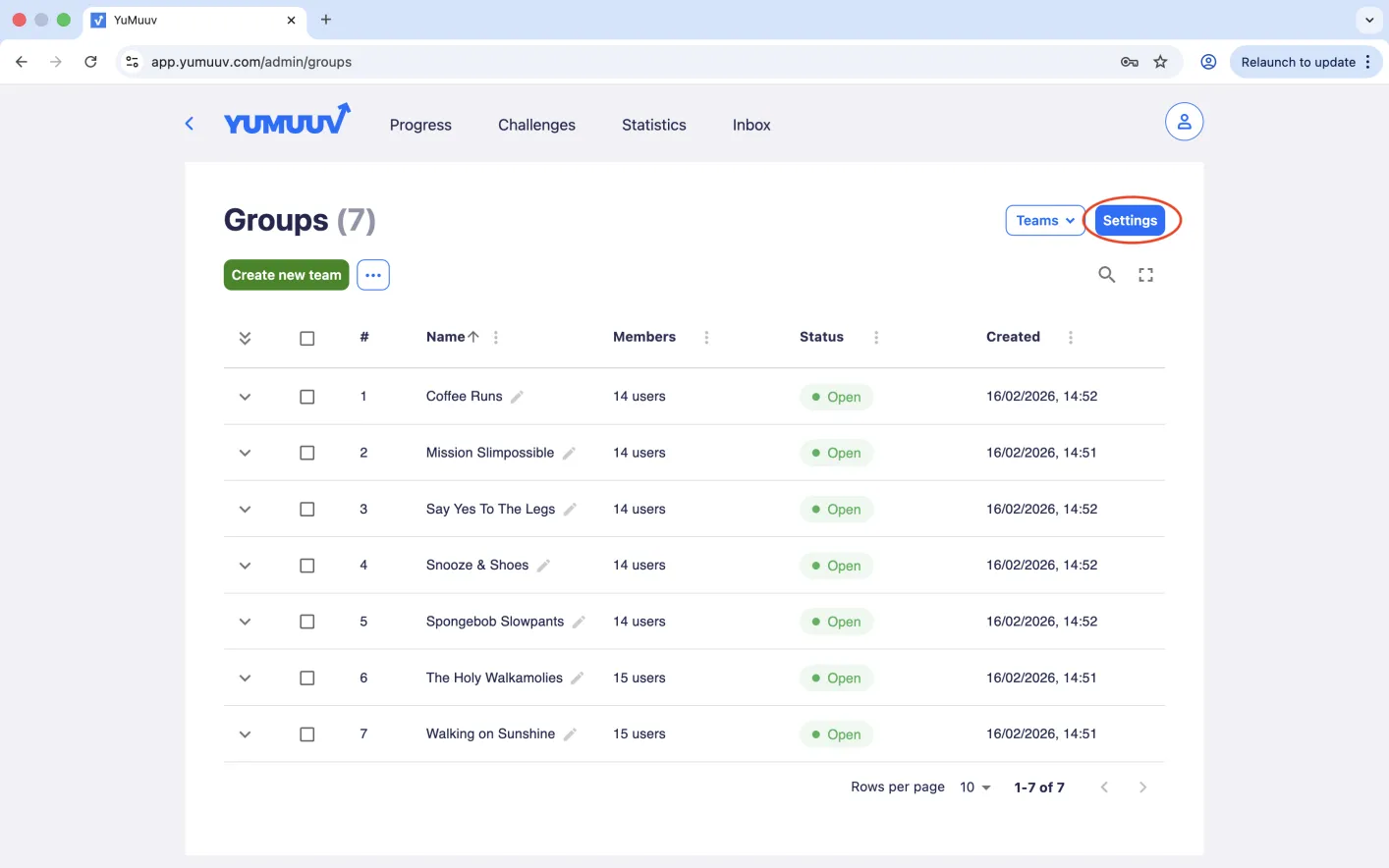
Go to the User management page and click the blue Groups button in the upper-right area.
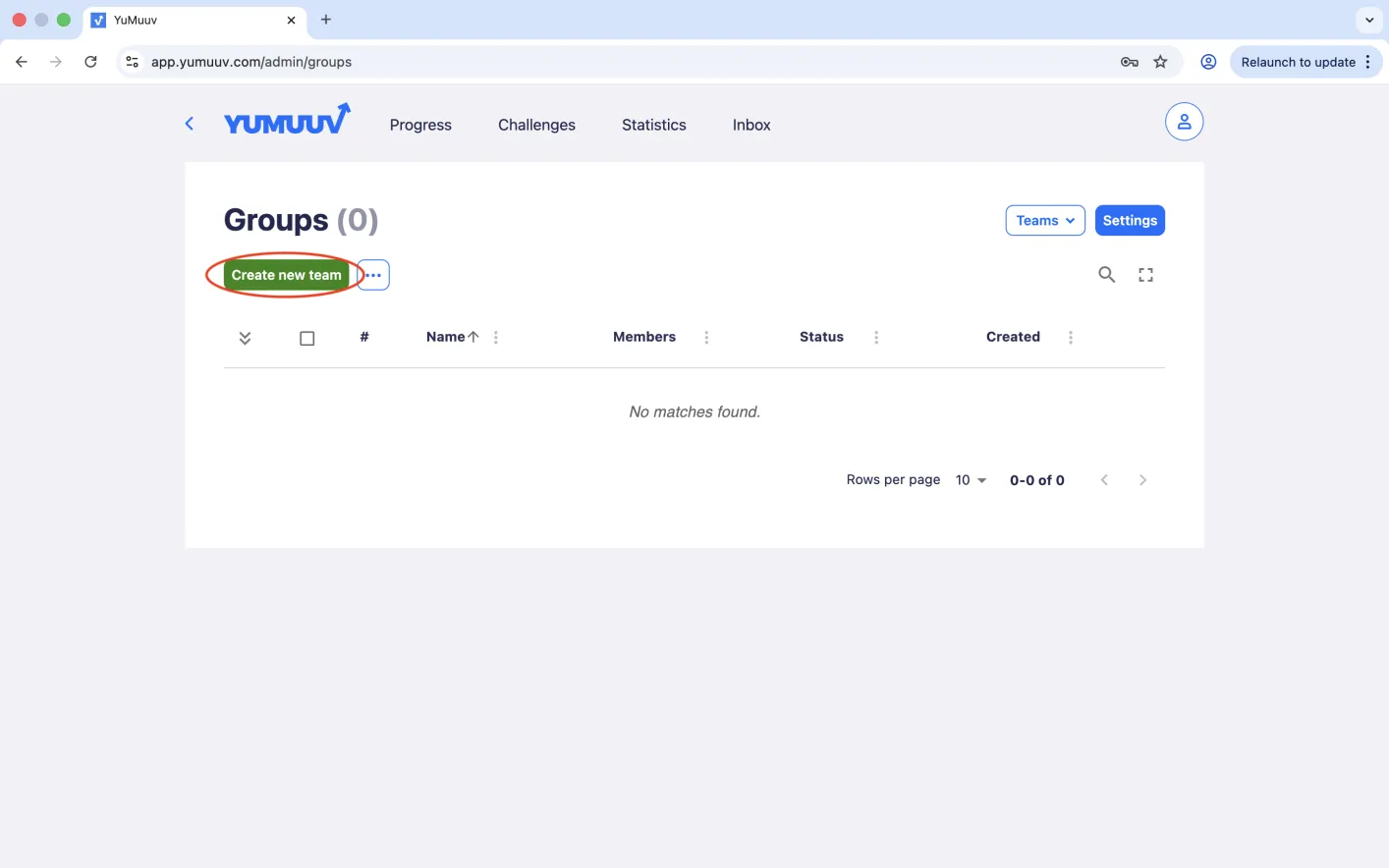
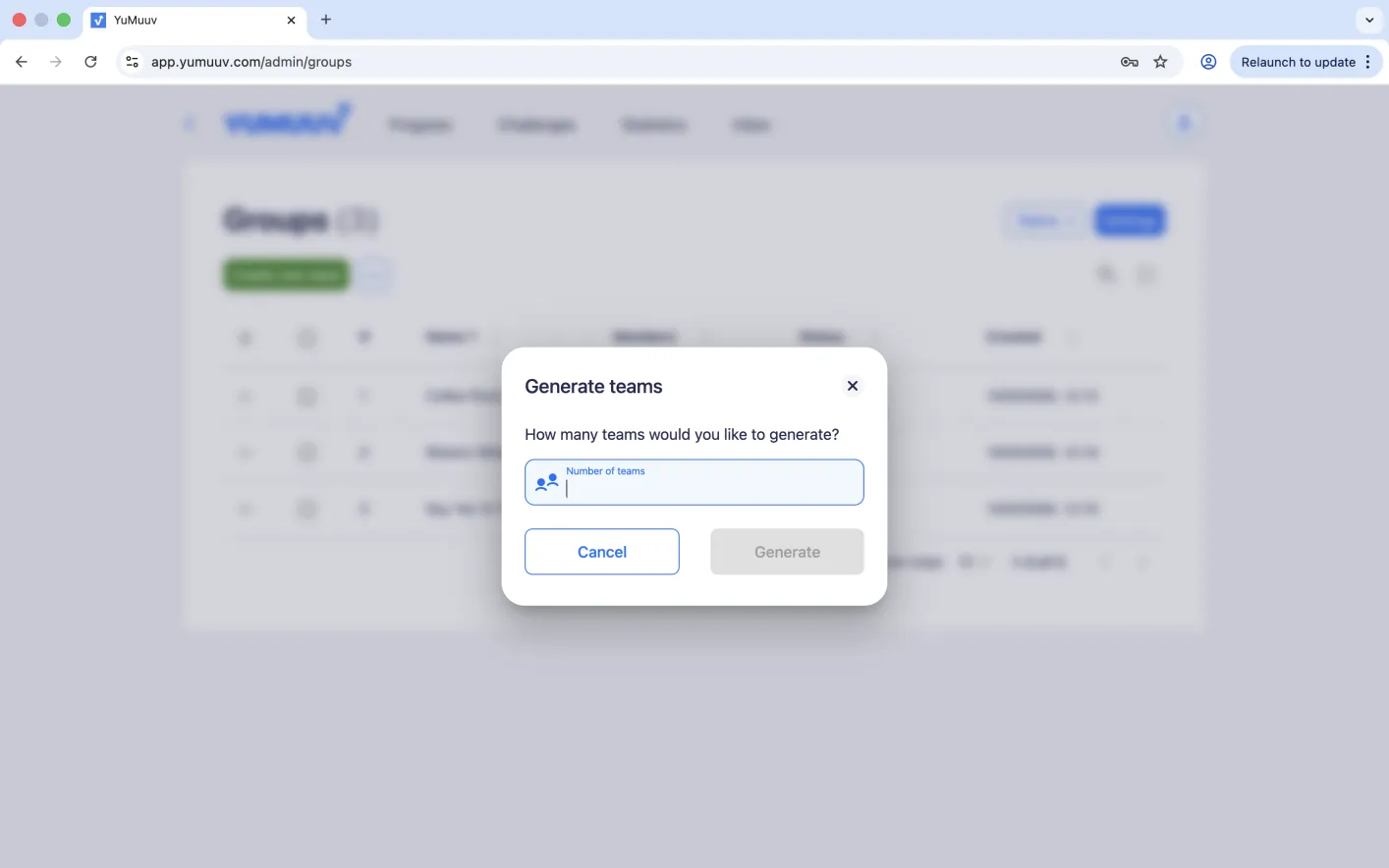
If you want to create teams, click the Create new team button in the top left corner, enter the team name, and then click OK.
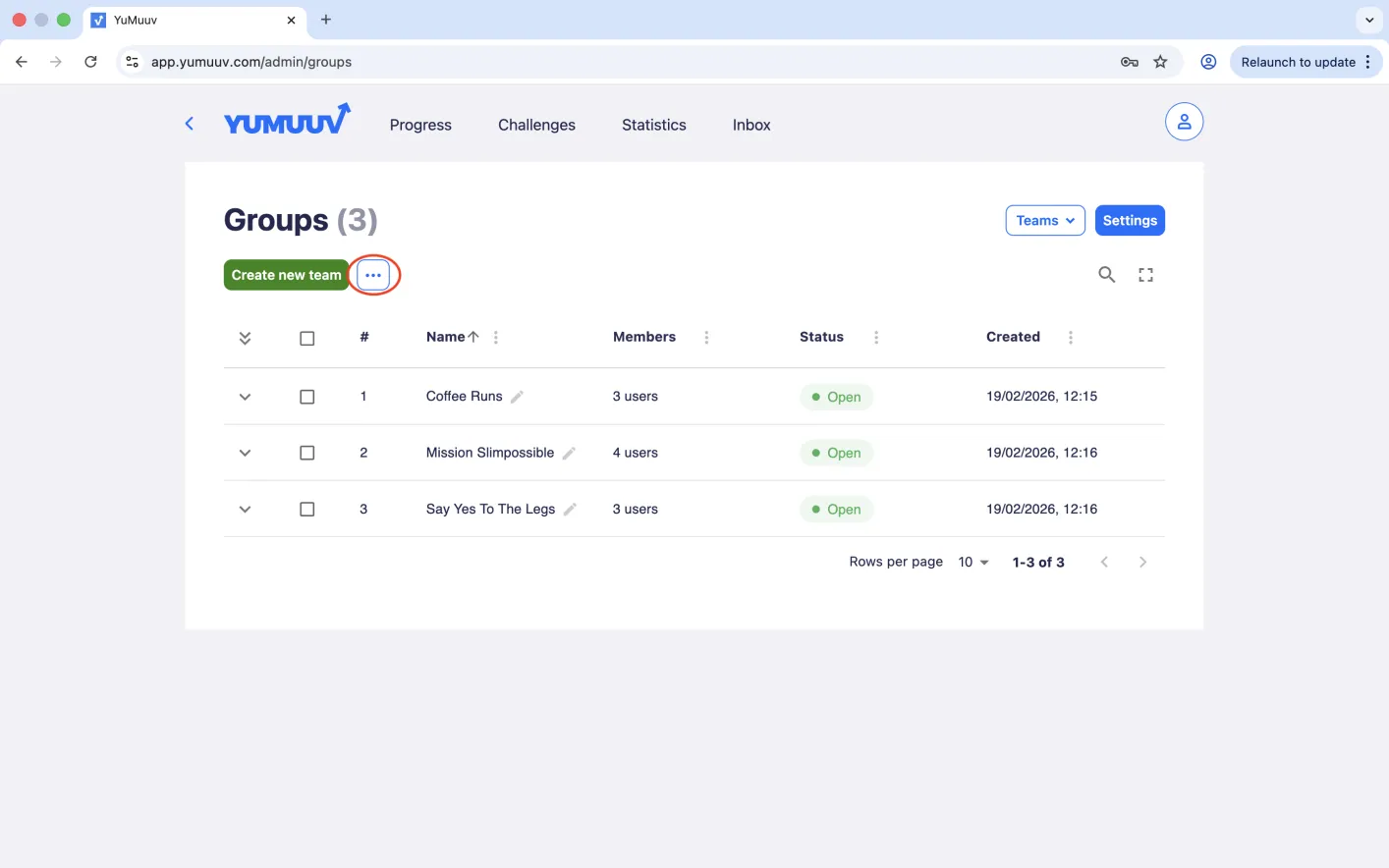
If you would like the system to generate the teams automatically, click on the three dots, select “Generate teams,” and enter the number of teams you would like to create.
2. Changing team/group name
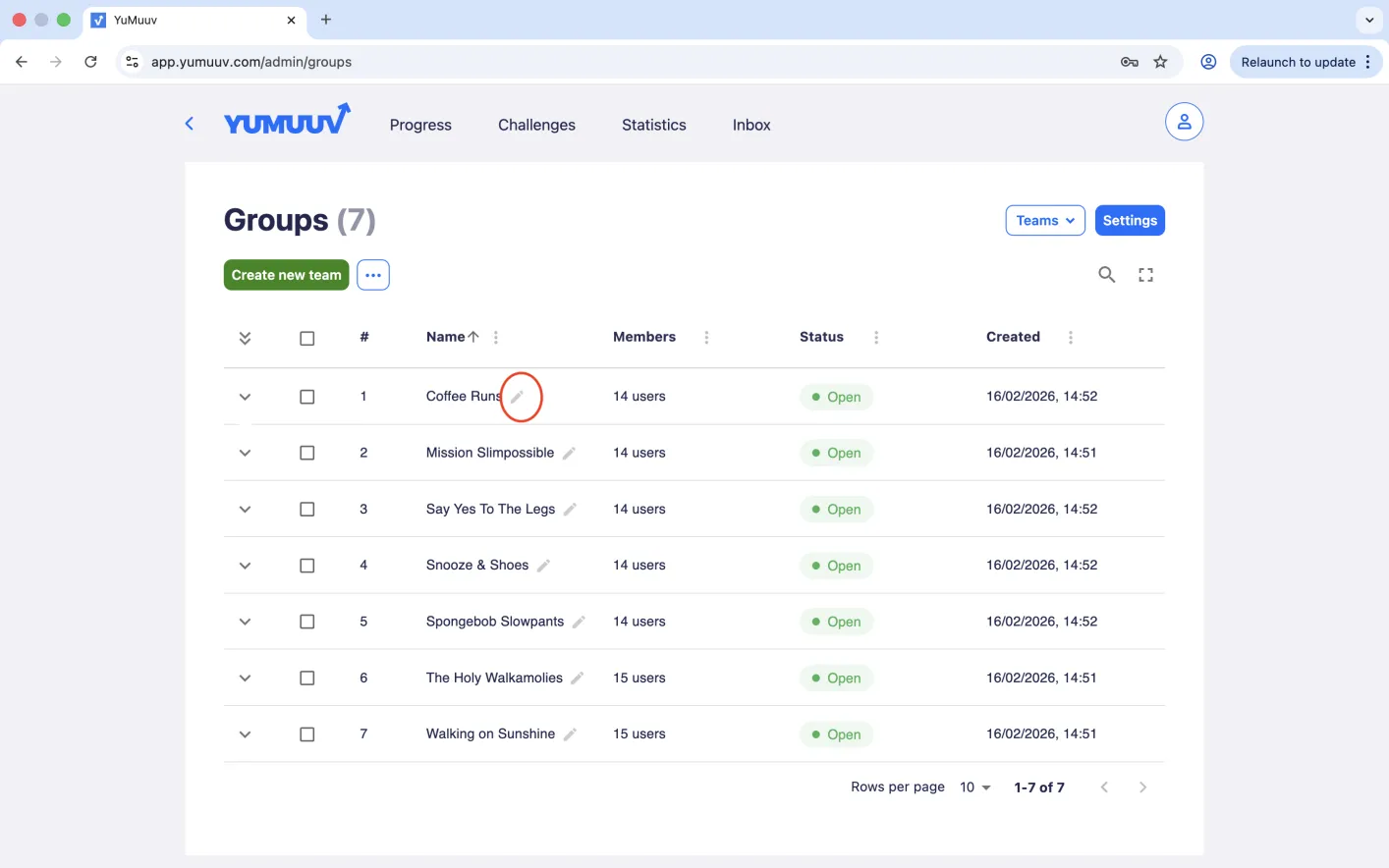
To change the team/group name later, click on the pencil icon next to the name.
3. How to view who is in the team/group?
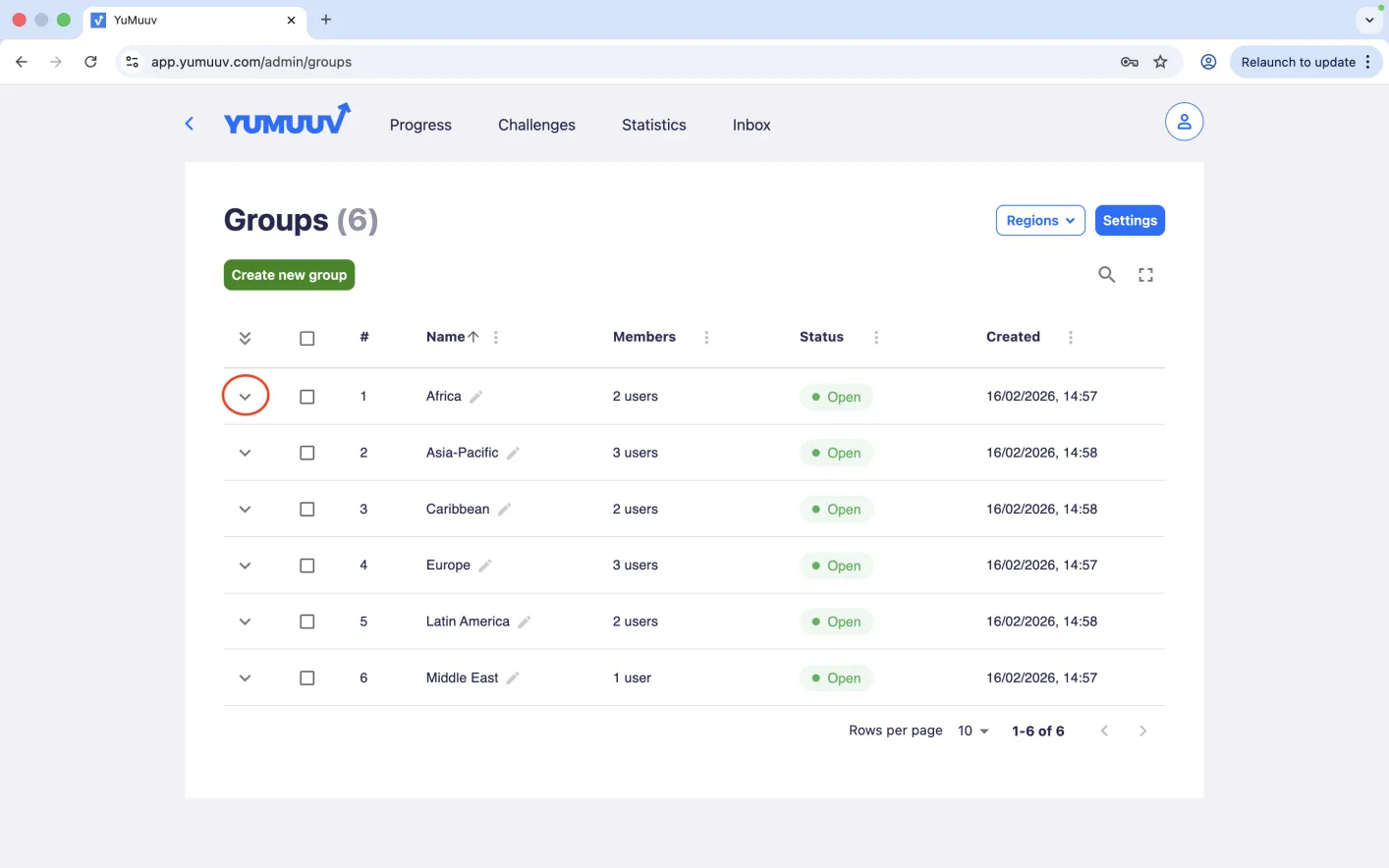
To view who is in the team/group, press the dropdown arrow (v), and a list of users in that team/group will appear.
4. Delete or lock/unlock a team/group
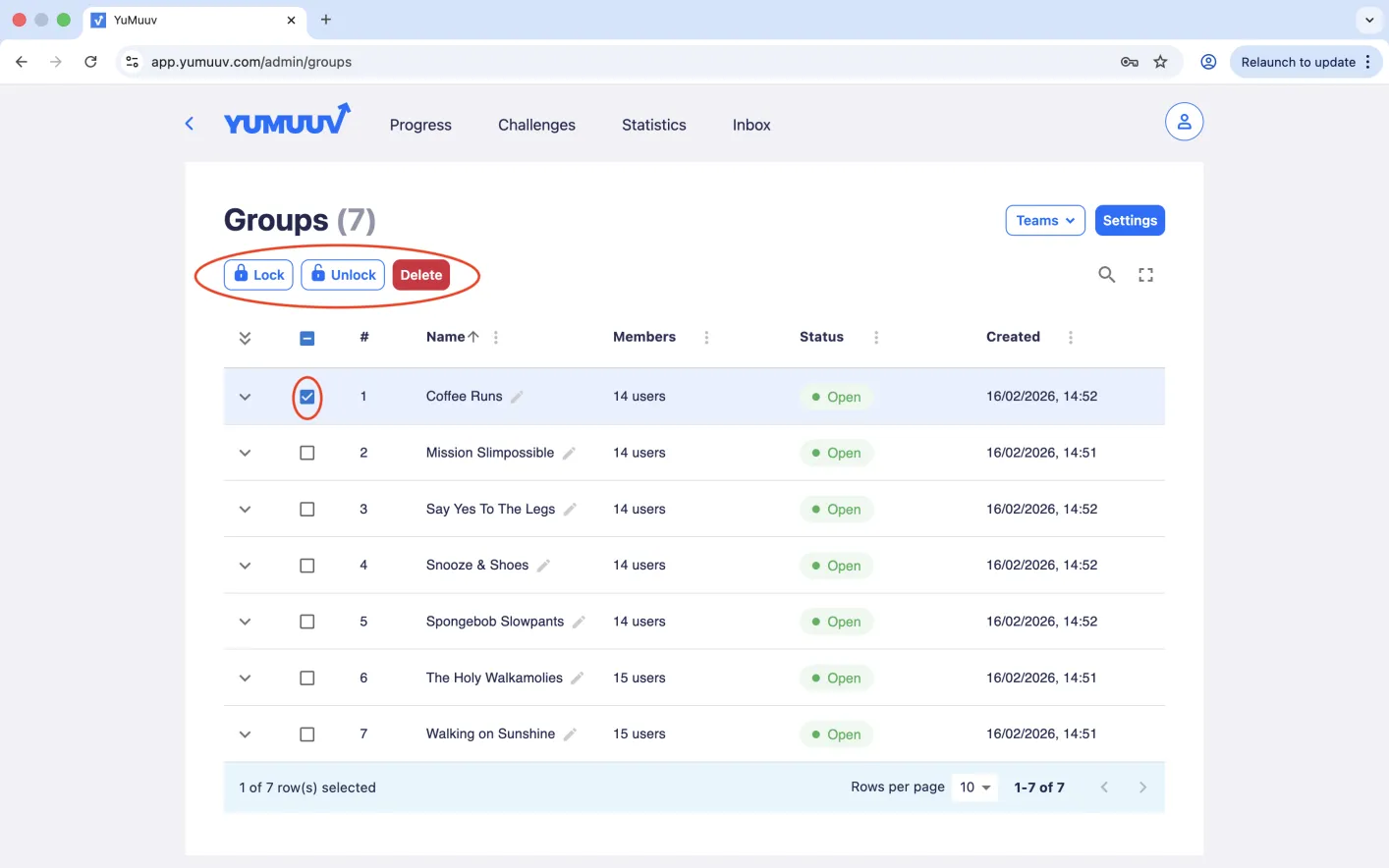
If you want to delete or lock/unlock a team/group (if the team/group is locked, no one can join it), tick the box next to the team/group name and click the appropriate button.
5. Settings
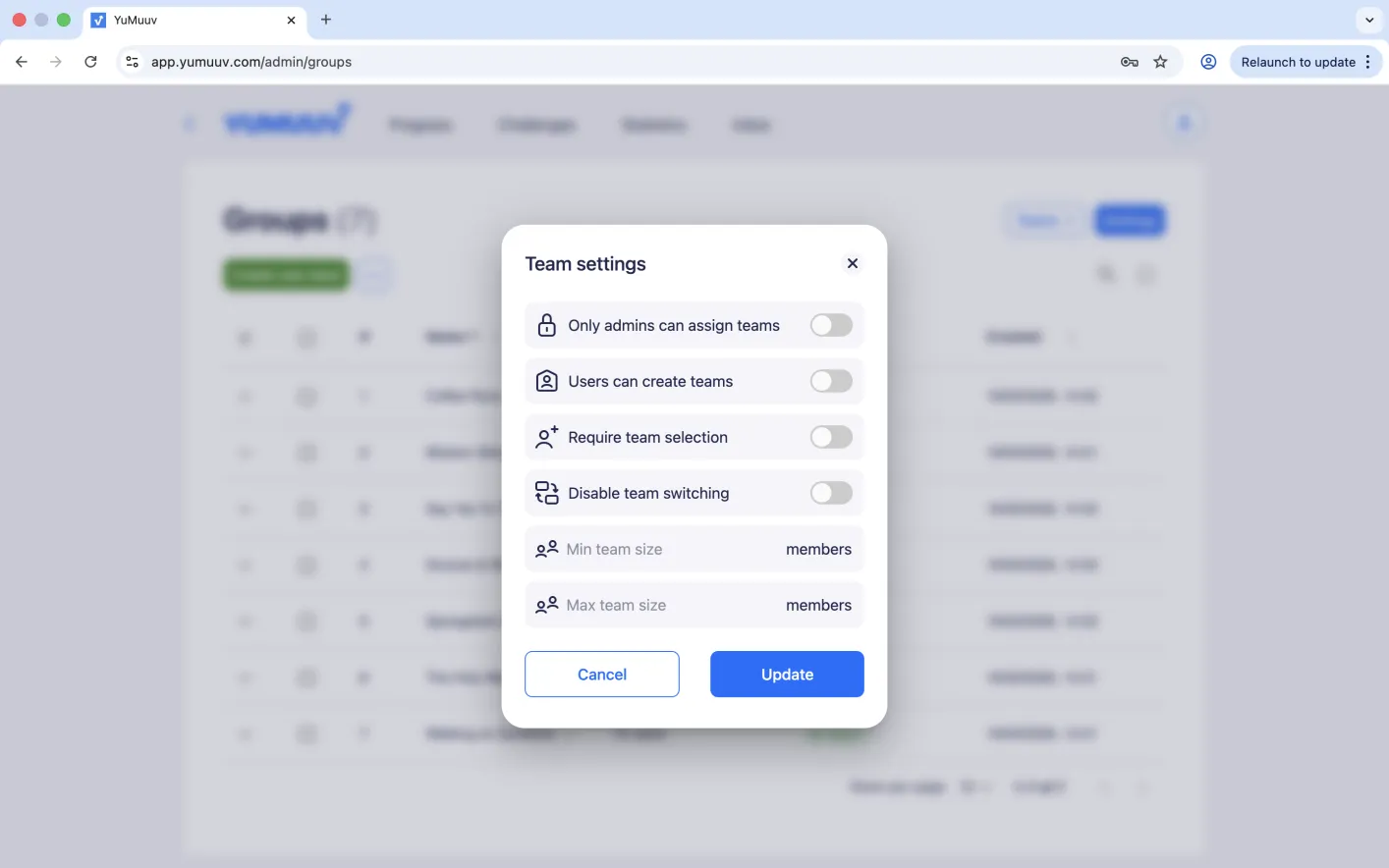
As an admin, you can access team/group settings by clicking the blue settings button, where you can configure the following options:
Only admins can assign teams: if this feature is enabled, only admins can assign users to teams, and users do not have the option to choose a team.
Users can create teams: if this feature is enabled, users have the ability to create their own teams. Detailed instructions for creating teams by users when this feature is enabled by the admin can be found here.
Require team selection: if this feature is enabled, users must select a team during registration. If they do not, they cannot proceed with the registration process.
Disable team switching: if this feature is enabled, users cannot change or switch their team after selecting one.
Min team size: you can define a minimum number of members required for a team. If a team does not reach this minimum, it will not appear in the challenge.
Max team size: you can define a maximum number of members allowed in a team. Once the limit is reached, no additional members can join.
6. How admins can assign users to teams?
If you enable the feature that allows only admins to assign users to teams, users will not have the option to choose their teams. Instead, admins will need to assign them.
To do this, go to the User Management page. In the Team column next to each user, there is a dropdown menu where you can assign them to a team.
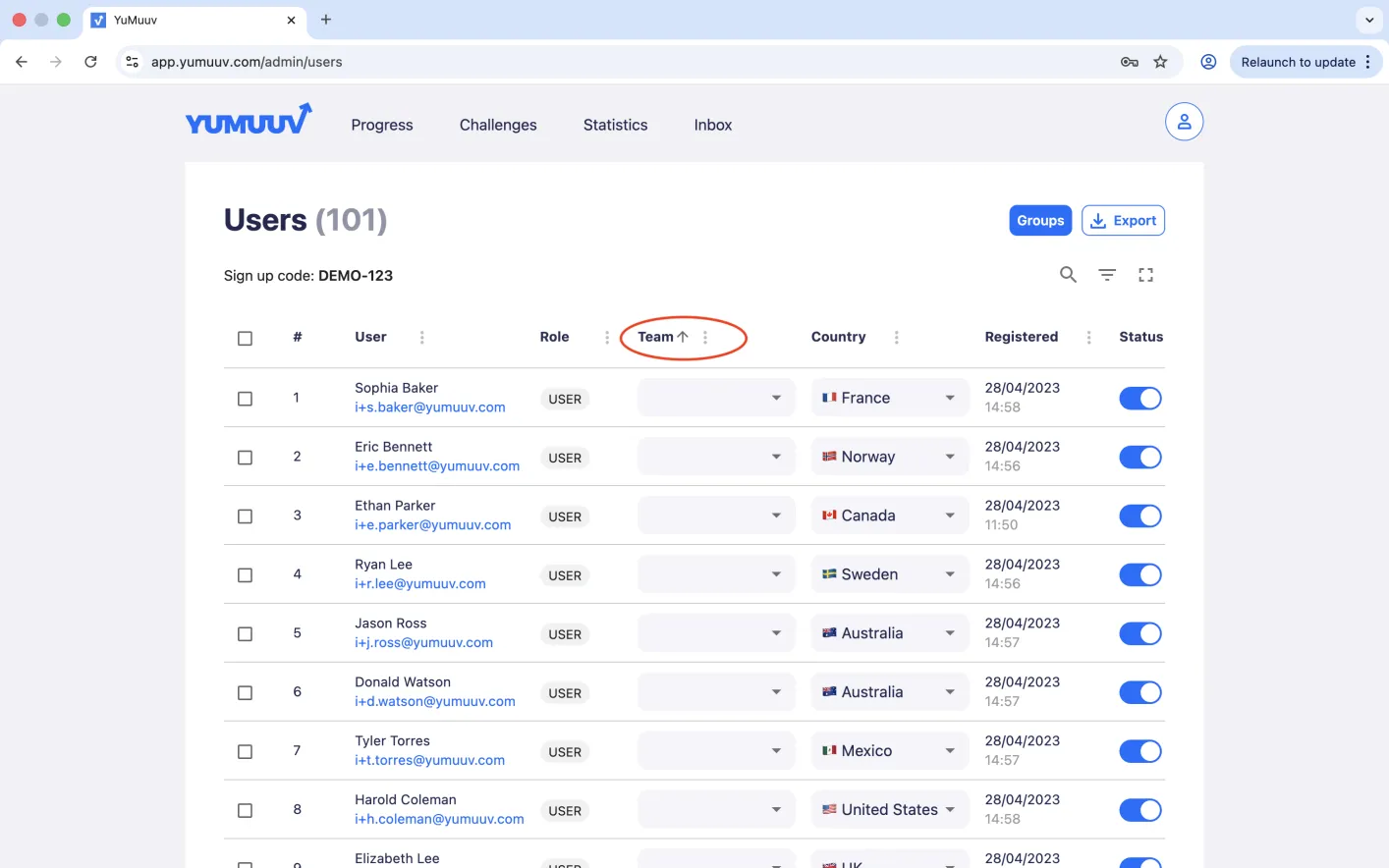
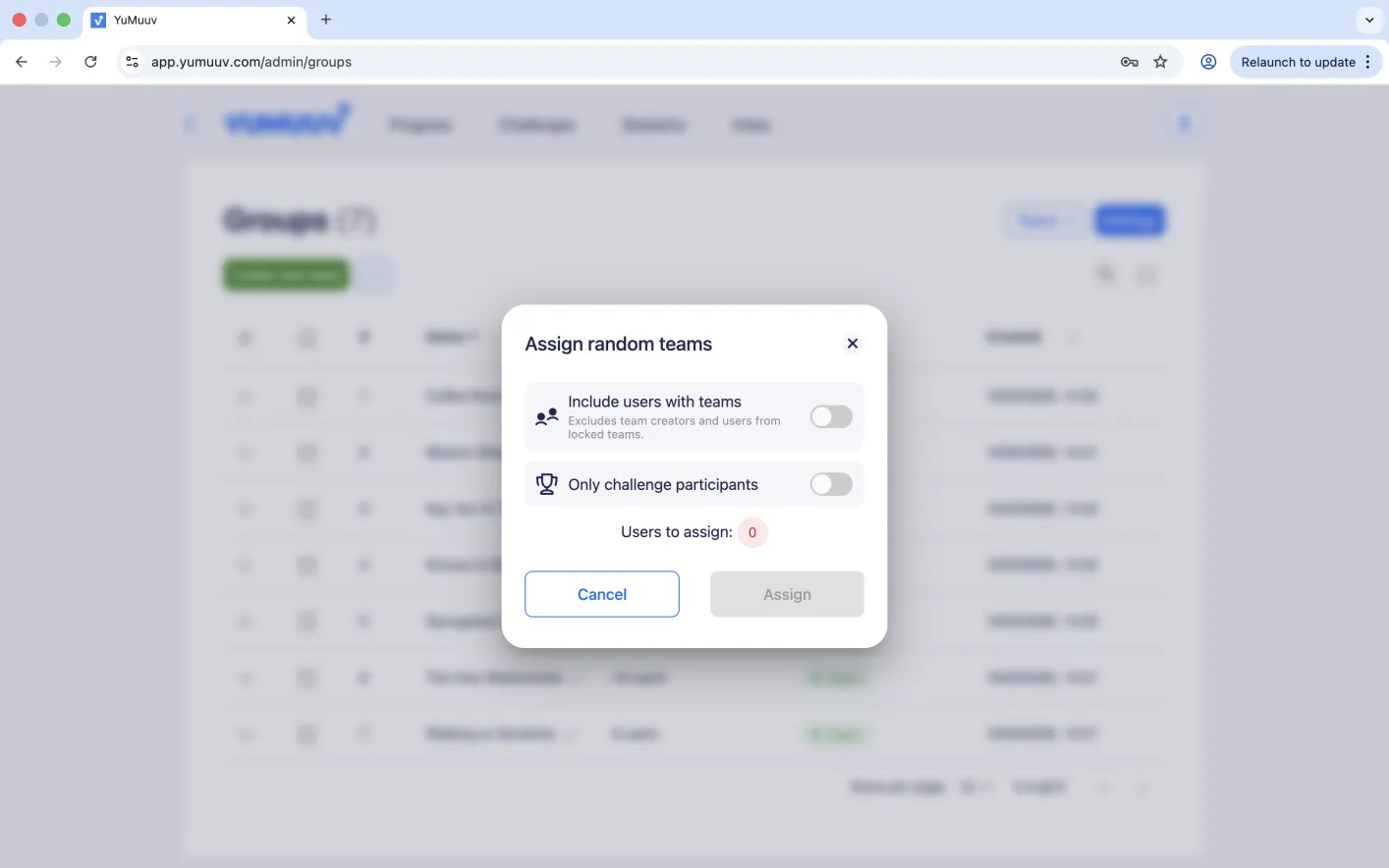
You also have the option to let the system assign users to teams randomly. To do this, click on the three dots and select “Assign random teams.”
You can then choose whether to include users who may already be assigned to a team. Additionally, you can select the option to assign only specific challenge participants to teams.
7. Creating custom group categories
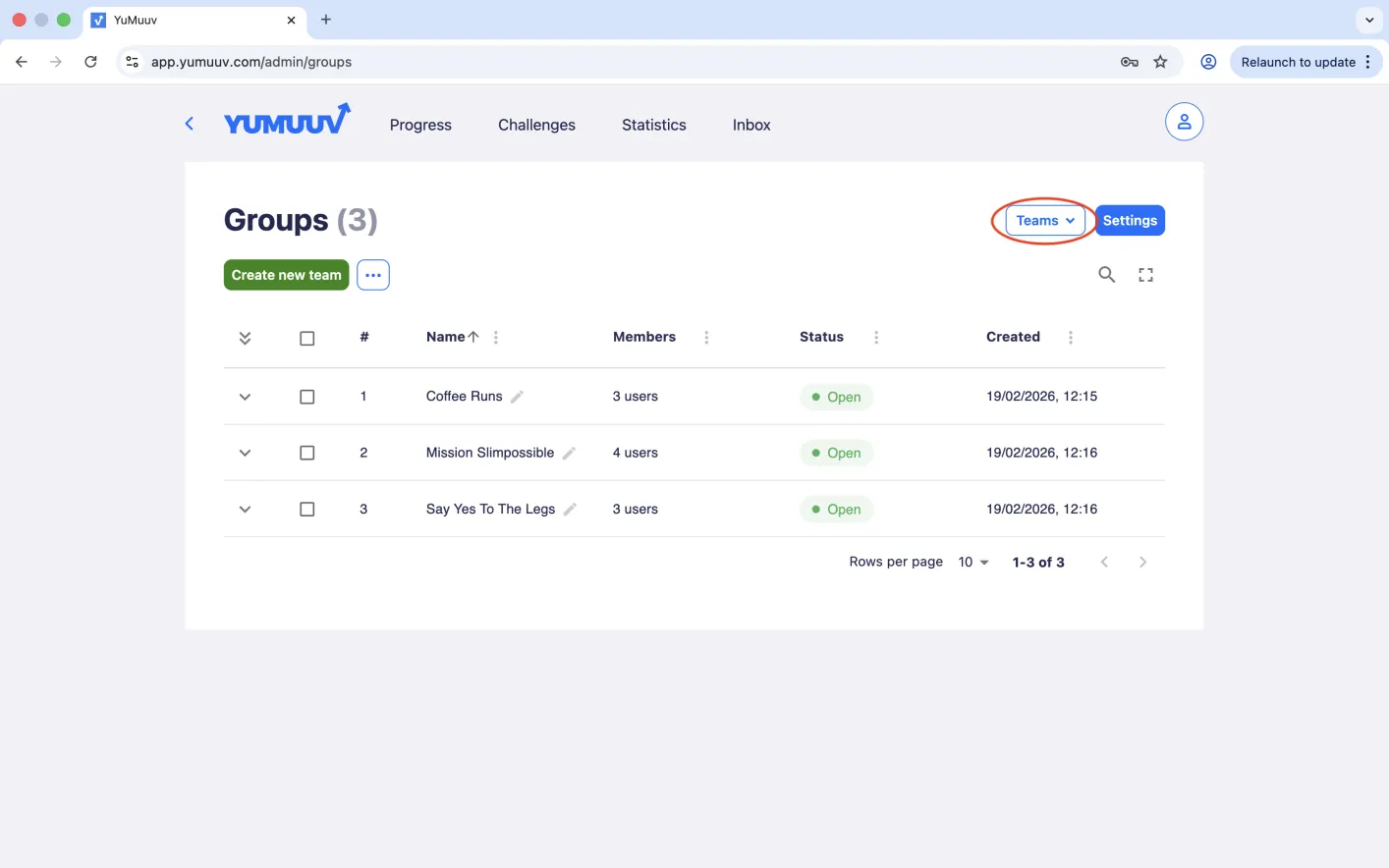
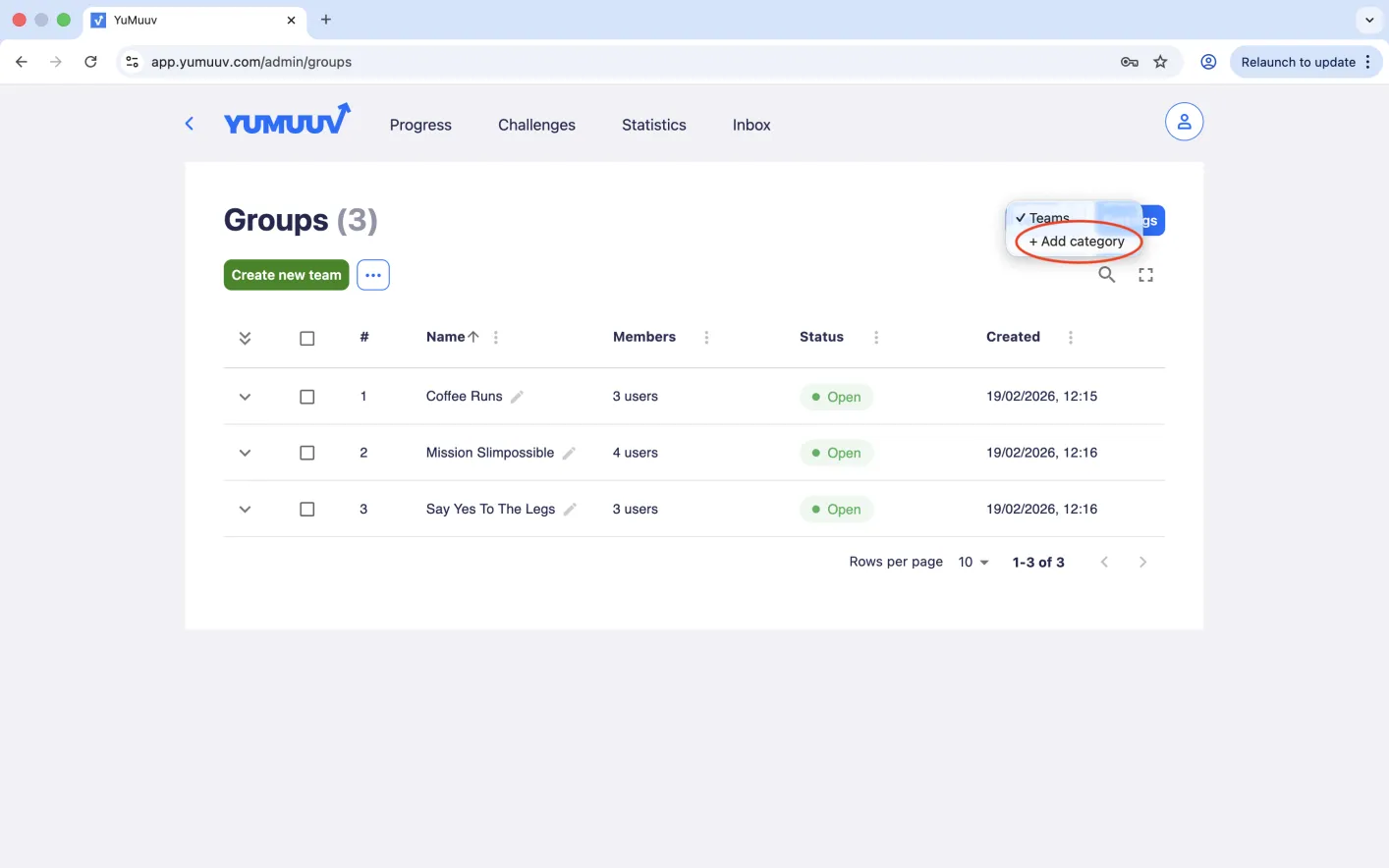
In addition to teams, you can create other custom groups if you wish, such as departments, states, or clubs. To do this, click the Teams button and select + Add category.
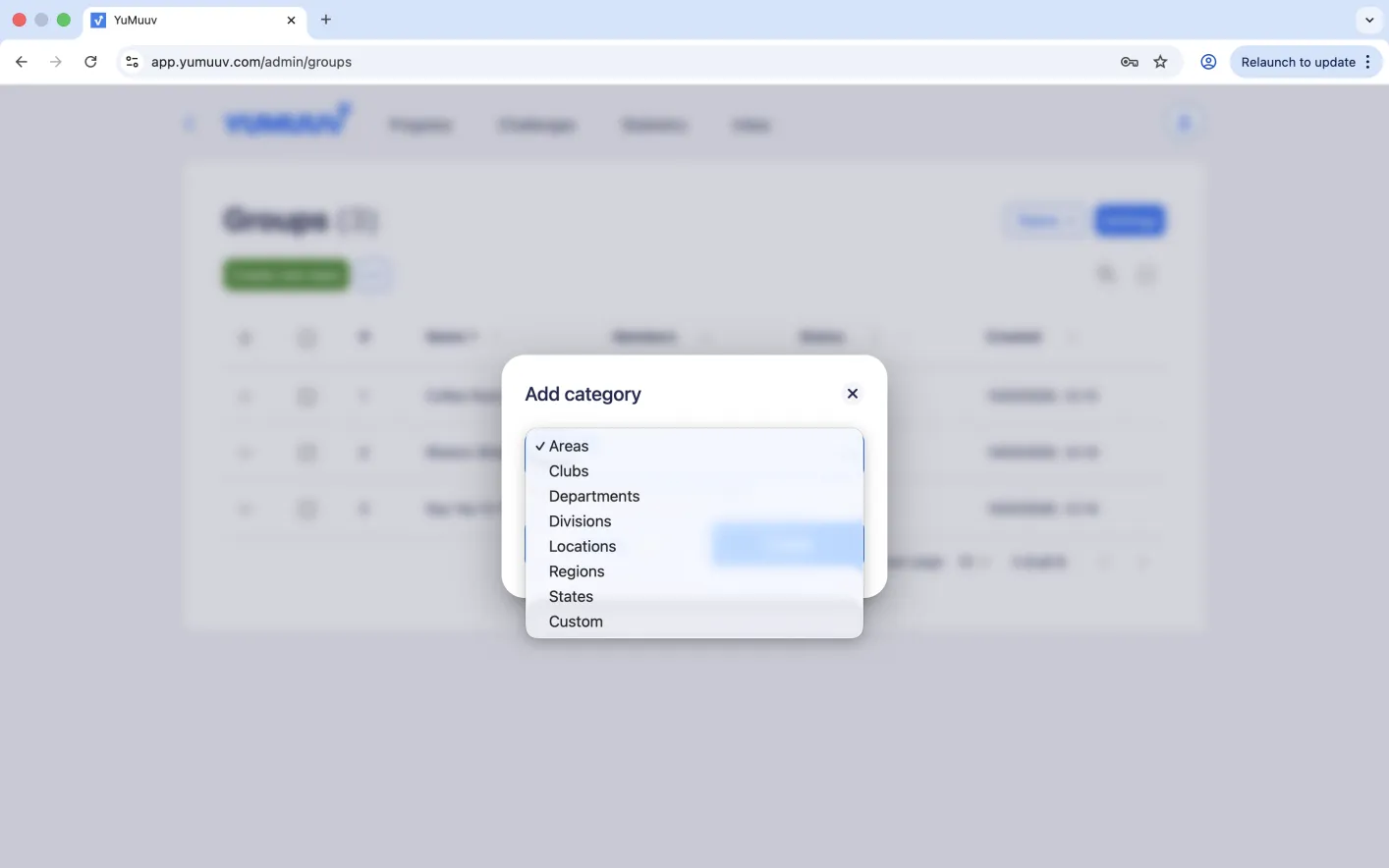
Next, choose the group type. You can either select one of the predefined group types or create a custom group.
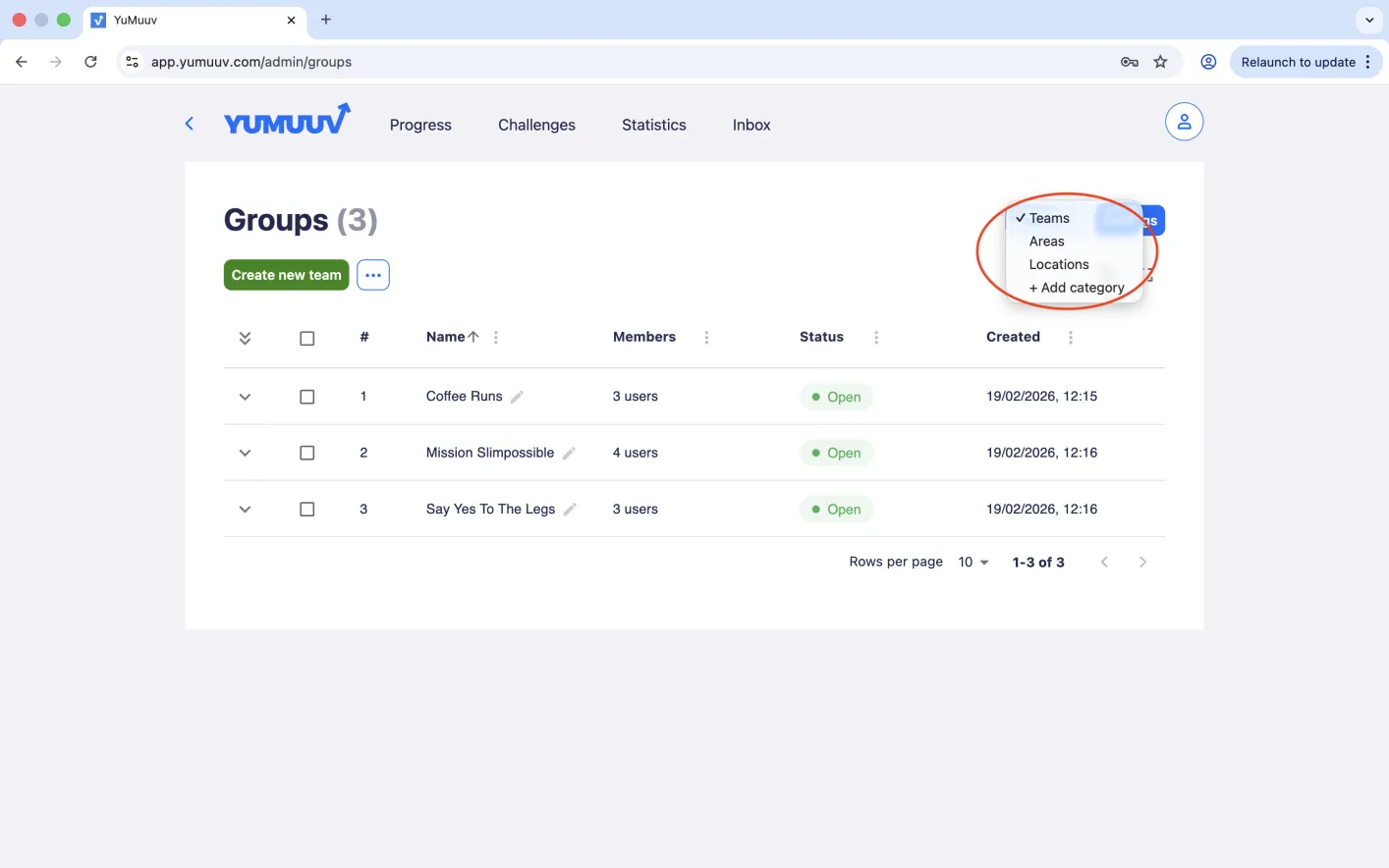
You can manage each group separately by selecting it from the dropdown list. Each group has its own settings.
If you have any problems creating or managing teams, contact us directly.