Teams in Wellness Challenges: How to Set Up and Manage Teams in YuMuuv
Teams turn a wellness challenge from a solo effort into a shared goal. People encourage each other, beginners contribute alongside experienced athletes, and colleagues who rarely work together get to know each other. In 2024 YuMuuv expanded its teams functionality so admins and users have more control. This guide explains how teams work in YuMuuv, which settings admins can use and how to build teams that keep everyone engaged.
Table of Contents
Why Teams Matter in Wellness Challenges
- Shared goals: everyone's activity counts towards the team result, so every step matters.
- Accountability: knowing teammates are counting on you is a strong motivator.
- Connection: teams build relationships across departments and locations – see how Paulig used a challenge to unite a team at work and the neuroscience of team walks.
How to Create Teams
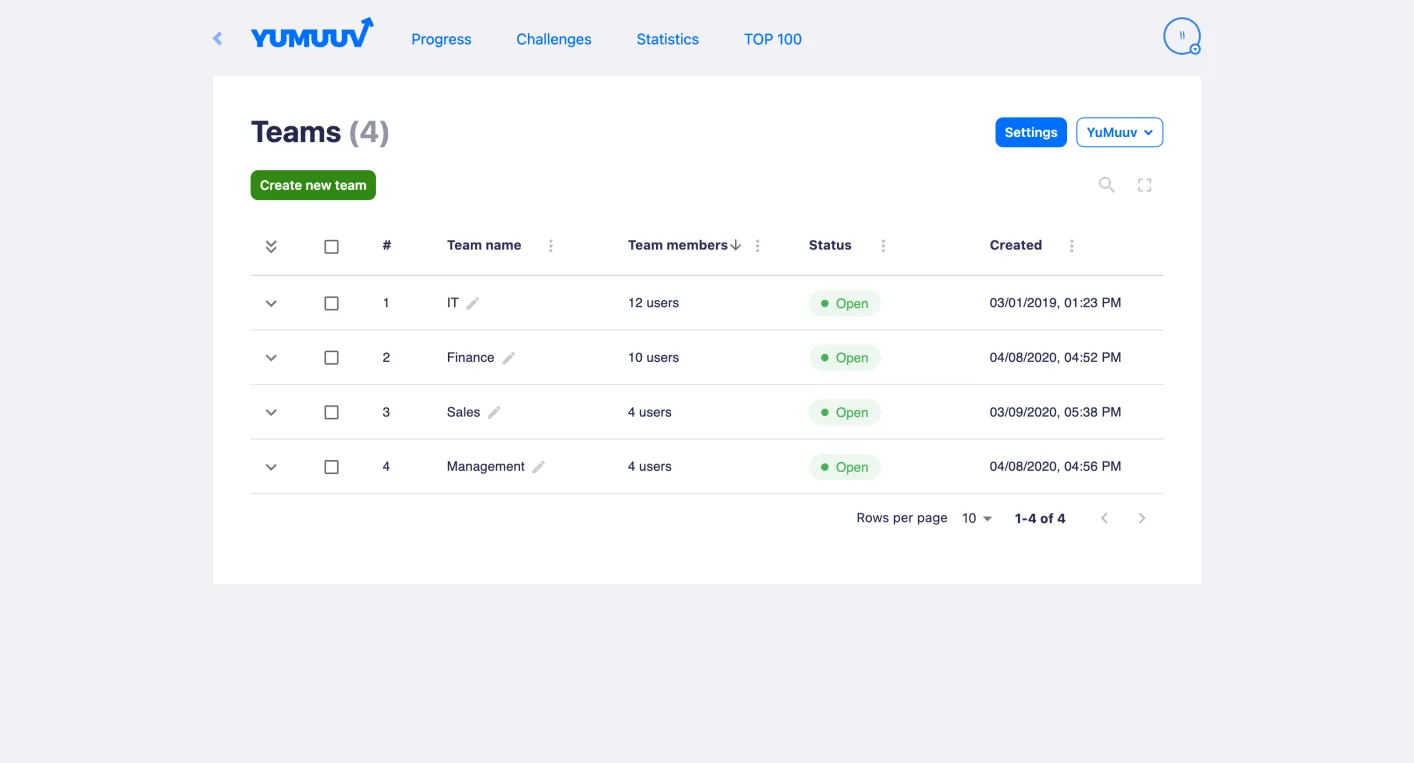
Admins manage teams from the User management page by clicking the Groups button. From there you can:
- Create a team manually: click Create new team, type a name and confirm.
- Generate teams automatically: choose Generate teams and enter how many teams you need.
- Let users create their own teams: enable this in the team settings if you want employees to form teams themselves.
- Rename teams at any time with the pencil icon – handy when a team wants a new name halfway through a challenge.
Team Settings for Admins
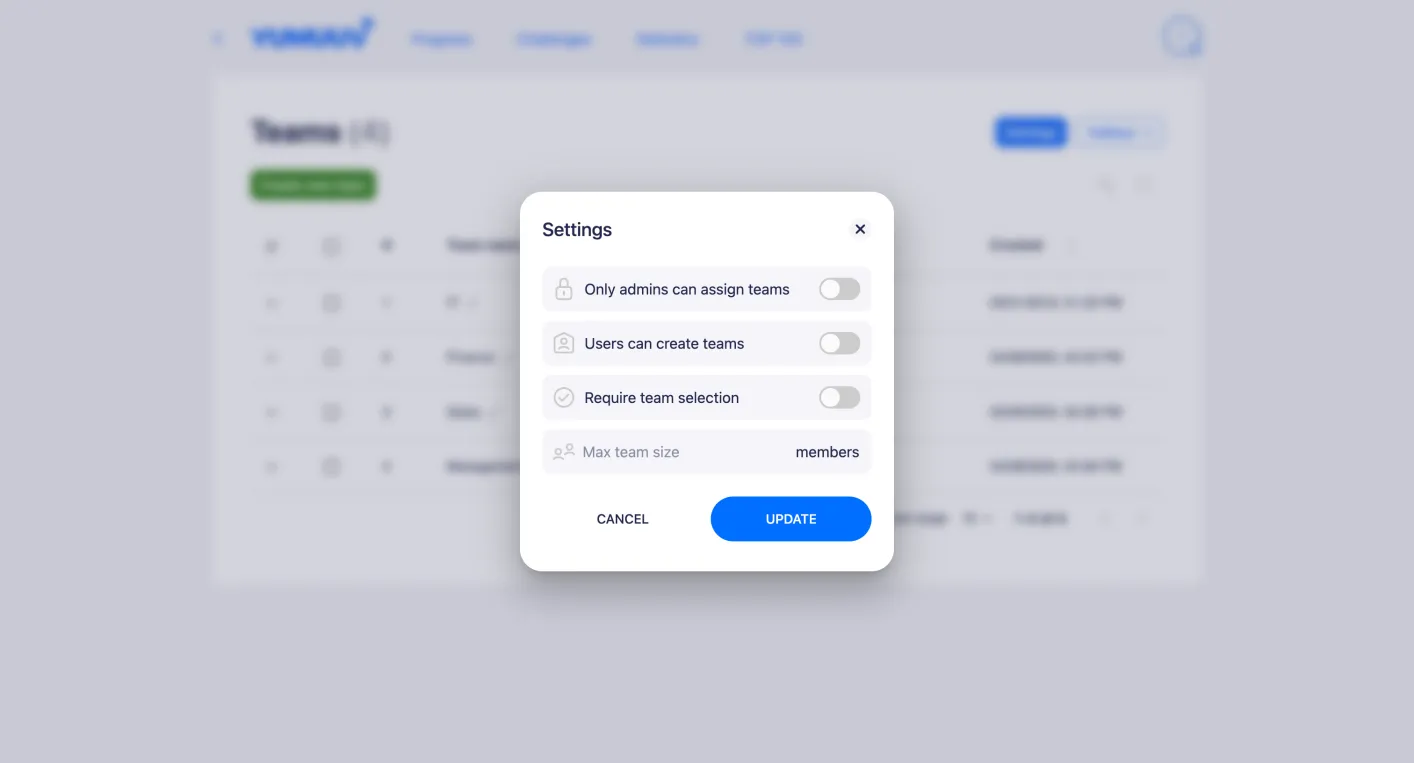
- Only admins can assign teams: users can't choose a team; admins assign them.
- Users can create teams: employees can set up their own teams.
- Require team selection: users must choose a team when they register.
- Disable team switching: once a user has chosen a team, they can't move to another.
- Minimum team size: teams below the minimum don't appear in the challenge.
- Maximum team size: once a team is full, nobody else can join.
- Lock or unlock a team: no one can join a locked team.
Assigning People to Teams
You can let employees pick their own team, assign each person from a dropdown in User management, or let the system assign random teams. Random assignment can include or skip people who already have a team, and can be limited to the participants of a specific challenge.
Beyond Teams: Departments, Locations and Clubs
Besides teams, admins can add custom group categories – for example departments, states, sites or clubs – each with its own settings. This makes it easy to compare activity between locations, as Sage Parts did with employees on five continents (see the Sage Parts case study).
Tips for Great Team Challenges
- Mix fitness levels. Random or balanced teams keep the competition open and help beginners feel included.
- Keep teams a similar size. Use minimum and maximum team sizes so results are fair.
- Lock teams once the challenge starts (or disable team switching) to stop last-minute team stacking.
- Make names fun. Need inspiration? See our walking team name ideas.
- Add team activities. Try these team booster activities to keep energy high.
- Keep it fair. Read how to build a culture where no one cheats.
FAQ
1. Can employees create their own teams?
Yes, if an admin enables the "Users can create teams" setting.
2. Can a team change its name?
Yes. Team names can be changed at any time.
3. How do I stop people switching teams during a challenge?
Enable "Disable team switching" or lock the team so no one else can join.
Step-by-step instructions are in the help center: managing and creating teams and groups. New to YuMuuv? Book a demo to see team challenges in action.